各种方式进行网页布局

各类常用网页布局方式:静态、自适应、流式、弹性、网格布局。

网页布局


静态布局

意思就是只是针对某个屏幕下设计的网页,当屏幕大小改变时,页面布局不会发生变化,就像经常所看到的滚动条。

自适应布局

特点是分别为不同的屏幕设置布局格式,当屏幕大小改变时,会出现不同的布局,意思就是在这个屏幕下这个元素块在这个地方,但是在那个屏幕下,这个元素块又会出现在那个地方。只是布局改变,元素不变。可以看成是不同屏幕下由多个静态布局组成的。

使用了媒体查询

1
<meta name="viewport" content="width=device-width, initial-scale=1.0">

流式布局

特点是随着屏幕的改变,页面的布局没有发生大的变化,可以进行适配调整,这个正好与自适应布局相补。

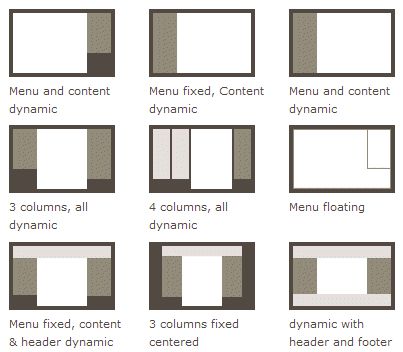
PC端常见布局
v2-e281d015d4ea562473a2c34c0bc32374_hd.jpg-22.3kB

浮动布局float

BFC 即 Block Formatting Contexts (块级格式化上下文)
Formatting context(格式化上下文) 是 W3C CSS2.1 规范中的一个概念。它是页面中的一块渲染区域,并且有一套渲染规则,它决定了其子元素将如何定位,以及和其他元素的关系和相互作用。
具有 BFC 特性的元素可以看作是隔离了的独立容器,容器里面的元素不会在布局上影响到外面的元素,并且 BFC 具有普通容器所没有的一些特性。

只要元素满足下面任一条件即可触发 BFC 特性:

  1. body 根元素
  2. 浮动元素:float 除 none 以外的值
  3. 绝对定位元素:position (absolute、fixed)
  4. display 为 inline-block、table-cells、flex
  5. overflow 除了 visible 以外的值 (hidden、auto、scroll)

特性

  1. 同一个 BFC 下外边距会发生折叠
  2. BFC 可以包含浮动的元素(清除浮动,使浮动在BFC盒子内)
  3. BFC 可以阻止元素被浮动元素覆盖(清除浮动,BFC盒子内不受外部浮动影响)
1
2
3
4
5
6
7
8
9
10
11
12
13
14
15
16
17
18
19
20
21
22
23
24
25
26
27
28
29
30
31
32
33
34
35
36
37
38
39
40
41
42
43
44
45
46
47
48
49
<!DOCTYPE html>
<html>
<head>
<title>float</title>
<style type="text/css">
body{
background-color: black;
}
.left{
height:300px;
background-color:red;
}
.right{
height:300px;
background-color:yellow;
}
.mid{
height:300px;
background-color:blue;
}
.top{
height:300px;
background-color:green;
}
.bottom{
height:300px;
background-color:purple;
}

.float .left{
width:300px;
float:left;
}
.float .right{
width:25%;
float:right;
}
</style>
</head>
<body>
<div class="float">
<div class="top"></div>
<div class="left">FL</div>
<div class="right">FR</div>
<div class="mid">FM</div>
<div class="bottom"></div>
</div>
</body>
</html>

定位布局position

1
2
3
4
5
6
7
8
9
10
11
12
13
14
15
16
17
18
19
20
21
22
23
24
25
26
27
28
29
30
31
32
33
34
35
36
37
38
39
40
41
42
43
44
45
46
47
48
49
50
51
52
53
54
<!DOCTYPE html>
<html>
<head>
<title>position</title>
<style type="text/css">
body{
background-color: black;
}
.left{
height:300px;
background-color:red;
}
.right{
height:300px;
background-color:yellow;
}
.mid{
height:300px;
background-color:blue;
}
.top{
height:300px;
background-color:green;
}
.bottom{
height:300px;
background-color:purple;
}

.position .left{
width:300px;
position: absolute;
left:8px;
}
.position .right{
width:25%;
position: absolute;
right:8px;
}
.position .mid{
margin:0 25% 0 300px;
}
</style>
</head>
<body>
<div class="position">
<div class="top"></div>
<div class="left">PL</div>
<div class="right">PR</div>
<div class="mid">PM</div>
<div class="bottom"></div>
</div>
</body>
</html>

表格布局table

缺点:

  1. table比其它html标记占更多的字节。(造成下载时间延迟,占用服务器更多流量资源)
  2. table会阻挡浏览器渲染引擎的渲染顺序。(会延迟页面的生成速度,让用户等待更久的时间)
  3. table里显示图片时需要你把单个、有逻辑性的的图片切成多个图。(增加设计的复杂度,增加页面加载时间,增加http会话数)
  4. 在某些浏览器中,table里的文字的拷贝会出现问题。(会让用户不悦)
  5. table会影响其内部的某些布局属性的生效(比如里的元素的height:100%) (限制页面设计的自由性)
  6. 一旦学了CSS的知识,你会发现使用table做页面布局会变得更麻烦。(先花时间学一些CSS知识,会省去你以后大量的时间)
  7. ‘table对’对于页面布局来说,从语义上看是不正确的。(它描述的是表现,而不是内容)
  8. table代码会让阅读者抓狂。(不但无法利用CSS,而且会不知所云,尤其在进行页面改版或内容抽取的时候)
  9. table一旦设计完成就变成死的,很难通过CSS让它展现新的面貌。
1
2
3
4
5
6
7
8
9
10
11
12
13
14
15
16
17
18
19
20
21
22
23
24
25
26
27
28
29
30
31
32
33
34
35
36
37
38
39
40
41
42
43
44
45
46
47
48
49
50
51
52
53
54
55
56
57
58
59
<!DOCTYPE html>
<html>
<head>
<title>table</title>
<style type="text/css">
body{
background-color: black;
}
.left{
height:300px;
background-color:red;
}
.right{
height:300px;
background-color:yellow;
}
.mid{
height:300px;
background-color:blue;
}
.top{
height:300px;
background-color:green;
}
.bottom{
height:300px;
background-color:purple;
}

table{
width:100%;
}
table .left{
width:300px;
}
table .mid{
margin:0 25%;
}
table .right{
width:25%;
}
</style>
</head>
<body>
<table>
<tr>
<td class="top" colspan="3"></td>
</tr>
<tr>
<td class="left">TL</td>
<td class="mid">TM</td>
<td class="right">TR</td>
</tr>
<tr>
<td class="bottom" colspan="3"></td>
</tr>
</table>
</body>
</html>

弹性布局flex

弹性布局重点在单一横排和单一竖排的样式应用

1
2
3
4
5
6
7
8
9
10
11
12
13
14
15
16
17
18
19
20
21
22
23
24
25
26
27
28
29
30
31
32
33
34
35
36
37
38
39
40
41
42
43
44
45
46
47
48
49
50
51
52
53
54
55
56
57
58
59
60
61
62
63
<!DOCTYPE html>
<html>
<head>
<title>flex</title>
<style type="text/css">
body{
background-color: black;
}
.left{
height:300px;
background-color:red;
}
.right{
height:300px;
background-color:yellow;
}
.mid{
height:300px;
background-color:blue;
}
.top{
height:300px;
background-color:green;
}
.bottom{
height:300px;
background-color:purple;
}

.flex{
display:flex;
flex-direction: column;
}
.flex .top,.flex .bottom{
flex:1;
}
.flex .main{
display: flex;
}
.flex .mid{
flex:1;
}
.flex .left{
width:300px;
min-width: 100px;
}
.flex .right{
width:25%;
}
</style>
</head>
<body>
<div class="flex">
<div class="top"></div>
<div class="main">
<div class="left">FL</div>
<div class="mid">FM</div>
<div class="right">FR</div>
</div>
<div class="bottom"></div>
</div>
</body>
</html>

网格布局grid

grid-area是应用的重点

1
2
3
4
5
6
7
8
9
10
11
12
13
14
15
16
17
18
19
20
21
22
23
24
25
26
27
28
29
30
31
32
33
34
35
36
37
38
39
40
41
42
43
44
45
46
47
48
49
50
51
52
53
54
55
56
57
58
59
60
61
62
63
64
65
<!DOCTYPE html>
<html>
<head>
<title>grid</title>
<style type="text/css">
body{
background-color: black;
}
.left{
height:300px;
background-color:red;
}
.right{
height:300px;
background-color:yellow;
}
.mid{
height:300px;
background-color:blue;
}
.top{
height:300px;
background-color:green;
}
.bottom{
height:300px;
background-color:purple;
}

.top{
grid-area: top;
}
.left{
grid-area: left;
}
.mid{
grid-area: mid;
}
.right{
grid-area: right;
}
.bottom{
grid-area: bottom;
}
.grid{
display: grid;
grid-template-columns: 300px 3fr 1fr;
grid-template-rows:auto;
grid-template-areas: "top top top"
"left mid right"
"bottom bottom bottom"
;
}
</style>
</head>
<body>
<div class="grid">
<div class="top"></div>
<div class="left">GL</div>
<div class="mid">GM</div>
<div class="right">GR</div>
<div class="bottom"></div>
</div>
</body>
</html>

响应式布局

就是分别为不同的屏幕设计的布局方式,可以理解成自适应布局和流程布局的结合。

媒体查询+各类流式布局

1
2
@media (max-width: 1200px) {
}

在响应式编程中,比较难处理的就是图片。需要针对不同设备的分辨率进行适配,同时要保持较好的兼容性。在处理图片时,有以下的小技巧:

  1. 为图像使用相对尺寸,防止它们意外溢出容器。
  2. 如果您要根据设备特性(亦称艺术指导)指定不同图像,则使用 picture 元素。
  3. 在 img 元素中使用 srcset 及 x 描述符,引导浏览器从不同密度图像中选择、使用最佳的一张。
  4. 如果您的页面仅有一两个图像,且这些图像没有在您的网站上的其他地方使用,可考虑使用内联图像以减少文件请求。
  5. 我们一个一个来说这些技巧。首先是为图像使用相对尺寸,跟前面的为元素使用相对尺寸一样,防止在小屏幕设备上溢出容器,可以使用 max-width: 100% 来保证图像及其他内容不会从父容器上溢出。同时,为了提高可访问性,需要为img元素添加有意义的alt描述。

其次是img元素的srcset属性,这个属性非常有用,可以针对不同设备特性提供多种图片文件。如果浏览器支持srcset属性,则会在进行任何请求之前对逗号分隔的图像/条件列表进行解析,并且只会下载和显示最合适的图像。在使用时,为了能够兼容不支持srcset属性的浏览器,还需要为img元素指定src。就像下面这样:

1
<img src="lighthouse.jpg"srcset="lighthouse.jpg , lighthouse-2x.jpg 2x">

另一个很有用的元素是picture,其能根据设备特性更改图像,picture元素定义了一个声明性解决办法,可根据设备大小、设备分辨率、屏幕方向等不同特性来提供一个图像的多个版本,就像video元素一样,可以指定多个源。为了保持兼容以及默认的情况,还可以在picture元素里面嵌套img,非常好用。

1
2
3
4
5
<picture>
<source media="(min-width: 800px)" srcset="head.jpg, head-2x.jpg 2x">
<source media="(min-width: 450px)" srcset="head-small.jpg, head-small-2x.jpg 2x">
<img src="head-fb.jpg" srcset="head-fb-2x.jpg 2x" alt="a head carved out of wood">
</picture>

同时,在处理图片时,为了减少请求,我们还可以内联图片资源。常见的方案是base64及内联SVG,内联SVG除了能够减少请求外,还能够保持页面缩放时,图片不失真。

0%